

In-game camera control
The Beam Eye Tracker SDK allows you to make the in-game camera react to the real-time head and eye tracking movements. This has two significant use cases:
Immersion in Simulation Games: by having the in-game camera follow the user’s eye and head movements, the user can experience something close to virtual reality, but without any headgear.
Larger Display Effect: In most games, like in a 3rd person RPG, you can also pan/rotate the camera according to the eye gaze on screen to emulate what would essentially be a larger display for the user.
In terms of integration, the process is the same for both use cases, which is explained in this section.
Note
This feature requires the viewport geometry to be correctly set and updated during gameplay. See Viewport for more information.
Integration process
The integration process consists of three main work packages:
Optionally, Add in-game settings.
We will now describe each of these work packages in detail.
Control the in-game camera movement
The recommended way to drive the in-game camera from the Beam Eye Tracker is to call
sample_smooth_sim_game_camera_state
once per render frame from the game’s own render loop. This method returns the smoothed
SimGameCameraState for the
current instant. It thus delivers a continuous camera signal at the render rate rather than at the tracking/webcam rate.
After obtaining the smoothed
SimGameCameraState, pass it
to
compute_smooth_sim_game_camera_transform_parameters
to combine the eye and head components into a single
SimCameraTransform3D
(yaw, pitch, roll, x, y, z), map the result to your game engine’s coordinate system (see
Mapping to the game engine coordinate system), and add it to the reference camera pose.
Readiness of the smoothed state is signaled inside the returned struct via
timestamp_in_seconds: when it equals NULL_DATA_TIMESTAMP, no tracking input has been
received yet or the filter parameters are not synchronized, and the remaining fields must be
ignored.
EW_BET_SimGameCameraState smoothed;
EW_BET_API_SampleAndFillSmoothSimGameCameraState(api, &smoothed);
if (smoothed.timestamp_in_seconds != EW_BET_NULL_DATA_TIMESTAMP) {
    EW_BET_SimCameraTransform3D t =
        EW_BET_API_ComputeSmoothSimGameCameraTransformParameters(api, &smoothed, 1.0f, 1.0f);
    /* map t to your game engine coordinates and apply each render frame */
}
auto smoothed = api.sample_smooth_sim_game_camera_state();
if (smoothed.timestamp_in_seconds != eyeware::beam_eye_tracker::NULL_DATA_TIMESTAMP) {
    auto t = api.compute_smooth_sim_game_camera_transform_parameters(smoothed, 1.0f, 1.0f);
    // map t to your game engine coordinates and apply each render frame
}
SimGameCameraState smoothed = api.SampleSmoothSimGameCameraState();
if (smoothed.TimestampInSeconds != Constants.NullDataTimestamp) {
    var t = api.ComputeSmoothSimGameCameraTransformParameters(smoothed, 1.0f, 1.0f);
    // map t to your game engine coordinates and apply each render frame
}
smoothed = bet_api.sample_smooth_sim_game_camera_state()
if smoothed.timestamp_in_seconds != beam_eye_tracker.NULL_DATA_TIMESTAMP():
    t = bet_api.compute_smooth_sim_game_camera_transform_parameters(smoothed, 1.0, 1.0)
    # map t to your game engine coordinates and apply each render frame
const smoothed = api.sampleSmoothSimGameCameraState();
if (smoothed.valid) {
  const t = api.computeSmoothSimGameCameraTransformParameters(smoothed, 1.0, 1.0);
  // map t to your game engine coordinates and apply each render frame
}
Note
The SimGameCameraState accessible from a TrackingStateSet is valid and
delivered with every tracking update, but it is a snapshot at the tracking/webcam
rate, which could 15-120Hz typically. Prefer sample_smooth_sim_game_camera_state for
the camera signal you actually render. The TrackingStateSet path remains the right pattern for other tracking data
(UserState, GameImmersiveHUDState, FoveatedRenderingState). Even if you use the TrackingStateSet path,
compute_smooth_sim_game_camera_transform_parameters is how you should combine the eye and head tracking components into a single camera pose.
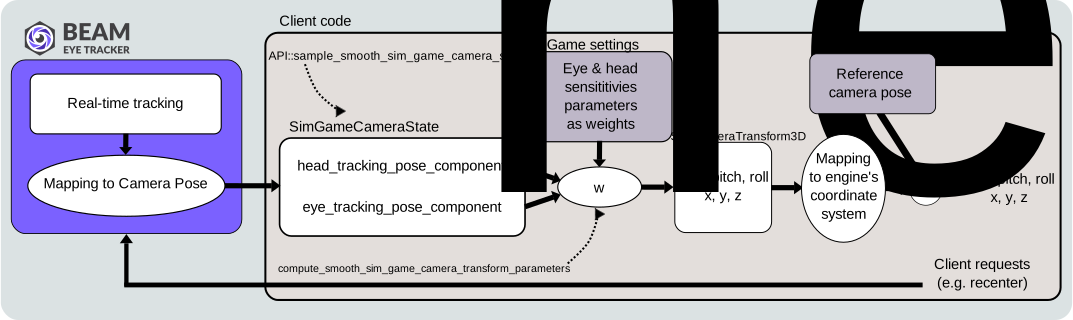
The in-game camera pose generation flow.
Implement the camera recentering
Recentering is used to “recalibrate” the camera
so that it goes back to the reference position for the current head/eye pose parameters. It is
the main direct interaction the user has with the in-game camera control feature.
The API provides two functions to start
and complete the recentering process, which must be paired and run in sequence.
Recentering is critical for the user to achieve a pleasant experience.
Furthermore, it is important for the user to recenter easily and as frequently as
they need. It is thus recommended to pair these function calls to a hotkey’s
press and release events.
void on_recentering_hotkey_press(EW_BET_API_HANDLE api) {
    /* Start recentering */
    EW_BET_API_RecenterSimGameCameraStart(api);
}

void on_recentering_hotkey_release(EW_BET_API_HANDLE api) {
    /* Complete recentering */
    EW_BET_API_RecenterSimGameCameraEnd(api);
}
void on_recentering_hotkey_press() {
    // Start recentering
    api.recenter_sim_game_camera_start();
}

void on_recentering_hotkey_release() {
    // Complete recentering
    api.recenter_sim_game_camera_end();
}
void OnRecenteringHotkeyPress() {
    // Start recentering
    api.StartRecenterSimGameCamera();
}

void OnRecenteringHotkeyRelease() {
    // Complete recentering
    api.StopRecenterSimGameCamera();
}
def on_recentering_hotkey_press():
    # Start recentering
    bet_api.recenter_sim_game_camera_start()

def on_recentering_hotkey_release():
    # Complete recentering
    bet_api.recenter_sim_game_camera_end()
function onRecenteringHotkeyPress() {
  // Start recentering
  api.startRecenterSimGameCamera();
}

function onRecenteringHotkeyRelease() {
  // Complete recentering
  api.stopRecenterSimGameCamera();
}
Furthermore, this process may benefit from the user holding the hotkey for a moment, as it also may trigger a recalibration of the eye tracking algorithm at the Beam Eye Tracker application.
Note
We strongly recommend that you call these methods instead of implementing your own recentering logic. See Let the Beam Eye Tracker do the heavy lifting for more information.
Add in-game settings
Both the Control the in-game camera movement and the Implement the camera recentering processes could be be slightly customized. This suggests that some settings could be exposed to the user in your game’s user interface. These are described below.
Note
Note that all of these settings are optional as you don’t have to expose any in-game settings to achieve an integration.
Device selection
If your game already support other head and/or eye tracking devices, you can let the user choose which device to use for in-game camera control. A priori, there is no practical use case for two of such devices to be enabled at the same time, so you can let the user choose input to use for the in-game camera control.
ON/OFF Toggle
You can let the user activate or deactivate the in-game camera control. Alternatively, within the Device selection, you could offer the option of “No Device”/”None”, meaning that no device is currently used for the in-game camera control.
Sensitivity/Range Sliders
As explained in the Control the in-game camera movement section, the eye and head tracking camera pose
components need to be combined based on weights for each component. The default weight values
are simply 1.0 and 1.0, which deliver the camera pose as “configured” from within the Beam Eye Tracker. See
compute_smooth_sim_game_camera_transform_parameters.
However, you can also include two sliders in the game settings, one for the eye tracking and one for the head tracking, to let the user decide the contribution of each component and thus briefly amplify or reduce the effect for each component from within your game.
Each slider could be named “Range” or “Sensitivity”.
In the case of a “range” slider, the values could map 1:1 to the weights themselves, and thus
the user will immediately understand values such as an amplification of 0.5X, 1X or 2X, etc..
Alternatively, you can offer a 0% to 100% “sensitivity” slider, that
would respectively map to something like [0.0, 2.0]. In either case,
we strongly advice that your default values map to 1.0 for the weights.
Note
An assumption of this design is that it gives a quick access tweak to the user inside the game settings. “Casual users” can set the game settings to their liking quickly through such sliders, but “power users” can keep the game settings to default and then access advance settings inside the Beam Eye Tracker.
Recentering hotkey
As described in Implement the camera recentering, the recentering process is recommended to be triggered by a hotkey press and release. Thus, you may want to allow the user to configure the hotkey from within the game settings.
As a fallback, the Beam Eye Tracker application also offers a recentering hotkey that works even when the game is in focus. However, some users may prefer to configure a hotkey within the game settings.
Mapping to the game engine coordinate system
Warning
Please note that game engines can vary in their definitions of “roll”,
“pitch” and “yaw”, not only regarding which axes is associated to each rotation or whether the
rotation is right or left handed, but also in the order of rotations. A different order of
rotation can lead to different camera orientations than intended. If this is not taken into consideration,
it can lead to camera controls that don’t feel natural, at best, or that cause motion
sickness at worst. Take into account how the Beam coordinate system is defined
when using it in your game engine. See also the migration note below for users of SDK 2.1.x and older versions.
The mapping of the camera pose parameters to your game engine’s coordinate system depends on
your specific game engine coordinate system definition. Thus, to let you resolve the mapping
we will here explain the coordinate system as defined by the Beam Eye Tracker API.
In essence, it follows closely the Head Pose coordinate system, but it assumes a virtual camera object, instead of the head:
The z-axis points forward.
The x-axis points to the left.
The y-axis points up.
The rotation angles yaw, pitch, and roll, define intrinsic rotations z-y’-x’’ of the virtual camera object, i.e., first roll (along the z-axis), then yaw (along the now rotated y-axis) and then pitch (along the double-rotated x-axis). Equivalently, the rotation matrix is \(R = R_z(\text{roll}) \cdot R_y(\text{yaw}) \cdot R_x(\text{pitch})\).
Individually, those angles can also be described as:
Yaw: Rotation around the y-axis (vertical-axis pointing up), \(-\pi/2\) deg when looking fully to the right, \(0\) when looking forward, and \(+\pi/2\) deg when looking fully to the left. Right-handed.
Pitch: Rotation around the x-axis (horizontal axis pointing left), \(-\pi/2\) when looking fully up, \(0\) when looking forward and \(+\pi/2\) when looking fully down. Right-handed.
Roll: Rotation around the z-axis (horizontal axis pointing forward), \(-\pi/2\) when tilting “left ear touching left shoulder”, \(0\) when looking forward and \(+\pi/2\) when tilting “right ear touching right shoulder”. Right-handed.
The translation parameters are to be added POST-rotation, and are defined in meters.
Note
Migration note for users of SDK 2.1.x and older Beam Eye Tracker versions.
In SDK versions 2.1.x and older, and in versions of the Beam Eye Tracker older than 2.6, the Euler angles
convention was intrinsic rotations y-x’-z’’. Adopting the current convention was done to maximize
compatibility with existing tools and frameworks, like the FreeTrack protocol. Should there be a
mismatch among versions, Beam-client pairs will be functional but the camera response can feel
different. It is therefore recommended to update to the latest version of the Beam Eye Tracker
and the SDK. Updating the SDK client to version 2.2 is strongly encouraged,
given the introduction of the new sample_smooth_sim_game_camera_state method,
which is the recommended way to access the in-game camera state. Users will notice the improved
camera smoothness.
Let the Beam Eye Tracker do the heavy lifting
Even if it is technically feasible for you to implement your own SimGameCameraState generation logic from
the Real-time tracking, it is strongly recommended to let the Beam Eye Tracker
do the heavy lifting and use the provided ready-to-use SimGameCameraState,
for these reasons:
It keeps the game implementation and maintenance to a minimum;
Power users already have access to advanced settings in the Beam Eye Tracker app and it can be counterproductive to duplicate such settings in the game;
It is future-proof, as the Beam Eye Tracker can evolve and offer gamers more intuitive ways to control the in-game camera from the head and eye tracking;
The Beam Eye Tracker community is engaged in sharing profiles which relate to the SimGameCameraState generation logic.
Finally, at the beginning of this section, we explained two use cases for the in-game camera control. Keeping this model means that the implementation process for both use cases is the same, and the only difference is the mapping from the real-time tracking to the camera pose, which is managed by the Beam Eye Tracker.